STW Services

Let’s Talk
Pipedrive to Dynamics 365 Sales

Pipedrive to Microsoft Dynamics 365 Migration Services

Move your pipeline, contacts and sales history into Dynamics 365 Sales with every relationship intact.

STW Services migrates Pipedrive organizations, people, leads, deals, products, activities, notes and files into Dynamics 365 Sales and Dataverse. We map your pipelines to a Dynamics sales process, clean and de-duplicate the data, run trial migrations and reconcile every table before your team switches over.

  • Pune, India · since 2011
  • Dynamics 365 Sales & Dataverse
  • Remote delivery worldwide
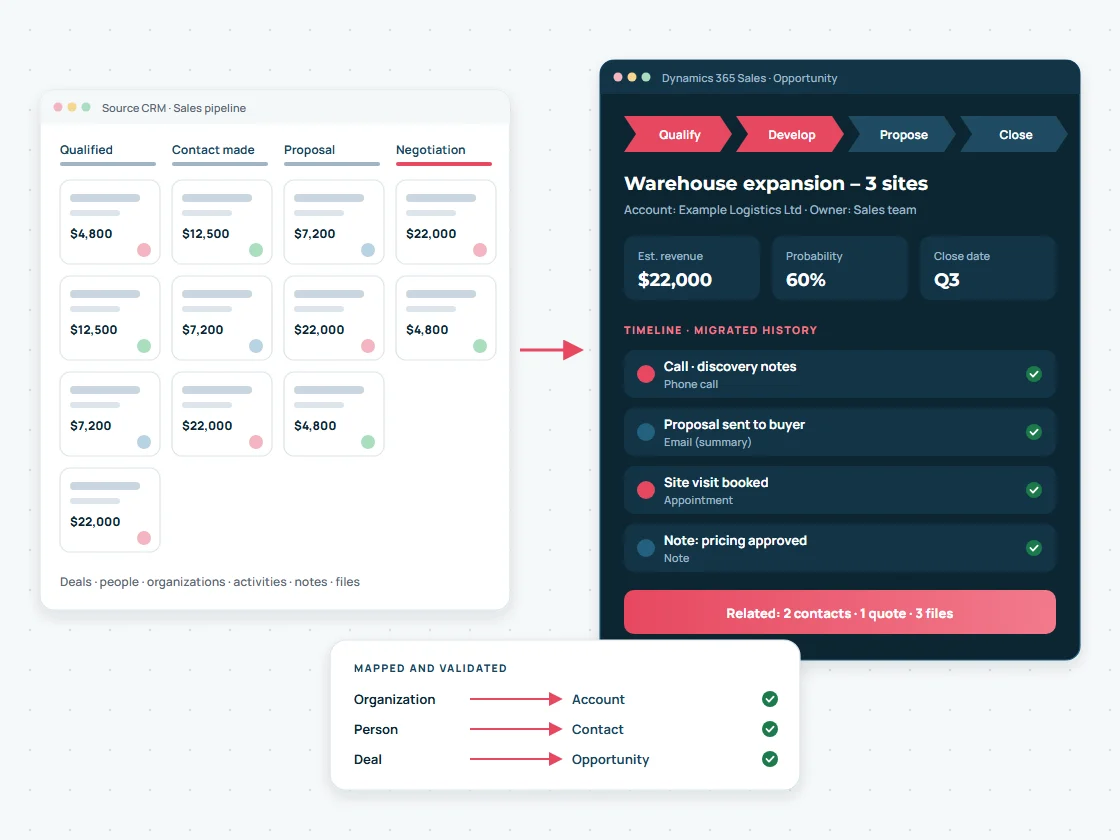
Illustration of a Pipedrive-style sales pipeline being migrated into a Dynamics 365 Sales opportunity with stages, related contacts and timeline history
Illustration: a Pipedrive-style pipeline becoming a Dynamics 365 opportunity with its history.
Why move

Why businesses migrate from Pipedrive to Dynamics 365

Most companies move from Pipedrive to Dynamics 365 when sales needs to work inside the Microsoft tools they already use, with stronger security, approvals, quoting and ERP integration than a pipeline-first CRM provides.

Pipedrive is a good tool for running a visual pipeline. As a business grows, the requirements usually change: several sales teams with different processes, quotes that must follow a price list, approvals, account hierarchies, customer service on the same records, and order hand-off to finance. Dynamics 365 Sales runs on Microsoft Dataverse, so the same customer data can support sales, service, Power Automate workflows, Power BI reporting and integrations with Business Central or another ERP. If you are still deciding on licences or scope, our Dynamics 365 consulting and implementation team can help first.

Microsoft 365 in context

Email, meetings and Teams conversations sit next to the account and opportunity.

Security & governance

Business units, security roles, teams and Entra ID sign-in with MFA.

Forecasting & reporting

Pipeline, forecasts and Power BI dashboards on live data.

ERP & process integration

Quotes, orders and customers connected to Business Central or your ERP.

Scope

What a Pipedrive to Dynamics 365 migration involves

A migration is more than an export and import. Each Pipedrive object needs a target table, field mapping, owner mapping and a rule for duplicates.
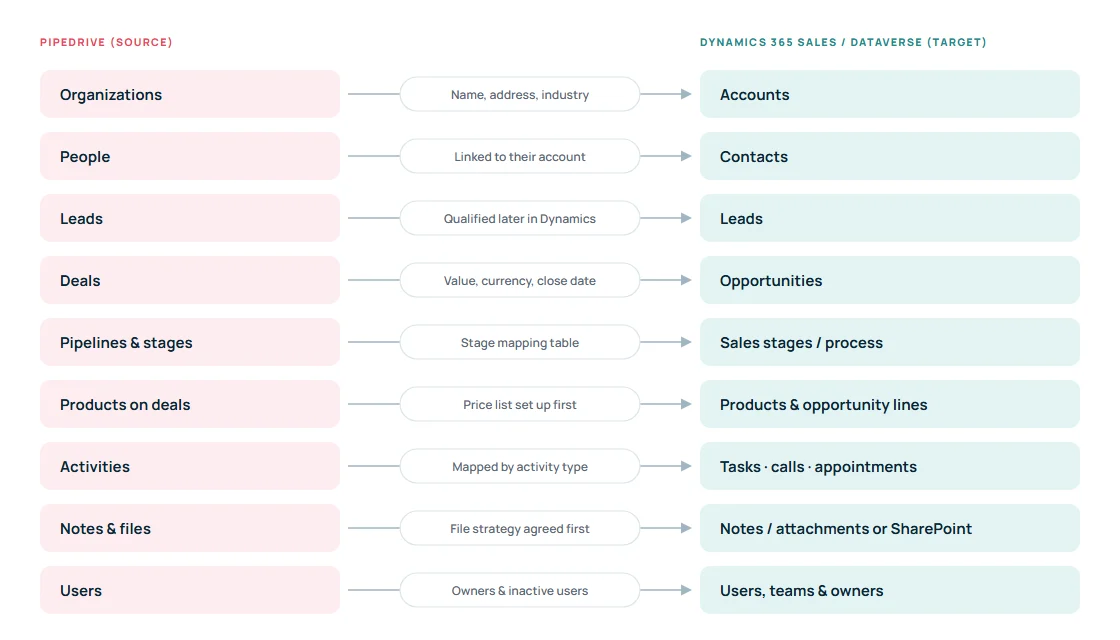
Diagram mapping Pipedrive organizations, people, leads, deals, pipelines, products, activities, notes, files and users to Dynamics 365 Sales tables
How Pipedrive objects usually map to Dynamics 365 Sales. The final mapping is agreed in a mapping document during discovery.
PipedriveDynamics 365 Sales / DataverseWhat we decide with you
OrganizationsAccountsWhich fields to keep, parent and child accounts, address format
PeopleContacts (linked to the parent account)Primary contact, consent and marketing fields, duplicates
Leads (Leads Inbox)LeadsWhich leads are still active and which should be archived
Deals (open, won, lost)Opportunities with status and close reasonOpen deals only, or full won and lost history
Pipelines and stagesSales stages and a business process flowOne process or several, stage-by-stage mapping table
Products and deal productsProducts, price lists, opportunity productsUnits, currencies and price list set-up before loading
Activities (calls, meetings, tasks, emails)Phone calls, appointments, tasks, emails or notesActivity-type mapping and which history to bring
Notes and filesNotes on the timeline, attachments or SharePointFile volume and where documents should live
Users, visibility groupsUsers, teams, business units, record ownersOwner mapping and what happens to leavers’ records
Custom fieldsCustom columns and choice (option set) columnsKeep, merge or retire each custom field
Records & relationships

How people, organizations, leads and deals are migrated

People and organizations

Pipedrive organizations become accounts and people become contacts linked to their account, so every opportunity, email and activity rolls up correctly. We standardise names, addresses, phone numbers and countries on the way in.

Leads and deals

Leads that are still being qualified move to Dynamics 365 leads. Deals become opportunities with value, currency, expected close date, owner and status. Won and lost deals keep their outcome, and we close them only after all related records are loaded, because closed opportunities are read-only in Dynamics 365.

Load order

Accounts load first, then contacts and products, then opportunities, then activities, opportunity products and notes. Every record keeps its Pipedrive ID in a dedicated column, which makes lookups reliable, re-runs safe and reconciliation exact.
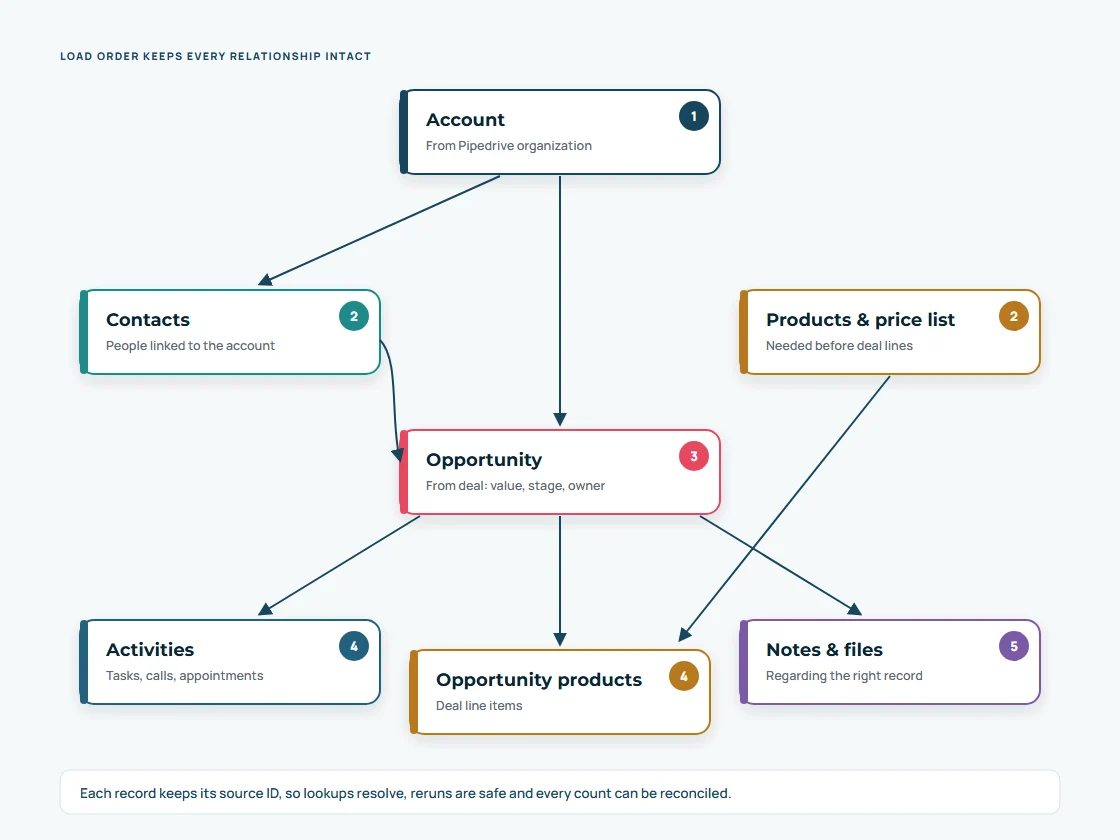
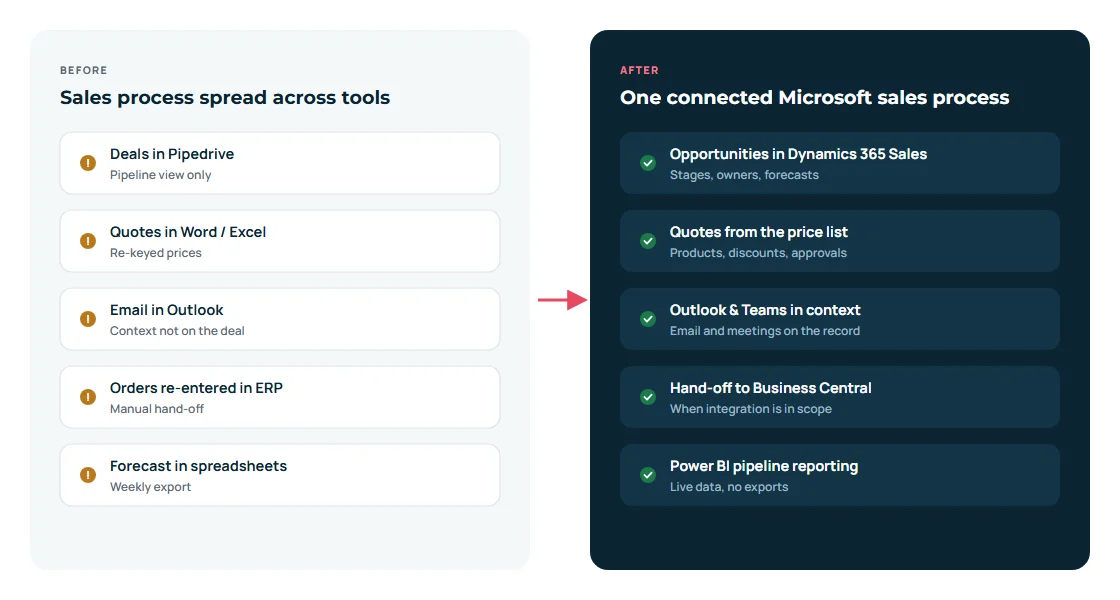
Diagram of the load order: accounts first, then contacts and products, then opportunities, then activities, opportunity products and notes, so relationships stay intact
Load order that keeps every relationship intact.
Before and after comparison: a sales process spread across Pipedrive, Word, Outlook and spreadsheets versus one connected Dynamics 365 Sales process
Illustration: a sales process before and after the move to Dynamics 365.
Pipelines & sales process

Mapping pipeline stages to a Dynamics 365 sales process

Pipedrive stages are flexible columns; Dynamics 365 Sales uses sales stages, a business process flow and probability. We build a stage mapping table for each pipeline, for example “Proposal made” to Propose, so opportunities land at the right step with the right probability.

This is also the moment to fix the process. Many teams use the migration to agree common stages, required fields per stage and approval steps for discounts or large deals, then automate them with Power Automate.

  • One business process flow per sales motion, or a shared one
  • Stage-based required fields and probabilities
  • Approval and notification flows rebuilt in Power Automate
  • Forecast categories set up for pipeline reporting
History & custom data

Activities, notes, ownership and custom fields

Activities and history

Calls, meetings and tasks are mapped by type to phone calls, appointments and tasks and set “regarding” the right opportunity, account or contact. Completed activities keep their dates. We agree how far back to go, because very old history is often better archived.

Notes and files

Notes appear on the record timeline. Files can become note attachments or move to SharePoint document libraries connected to Dynamics 365. Files stored in Google Drive are not part of Pipedrive’s standard export, so they need their own step.

Owners and users

Each Pipedrive user is matched to a Dynamics 365 user or team before loading, because ownership drives security. Records owned by people who have left are assigned to a team or manager you choose.

Custom fields

We review every custom field and how often it is used. Fields worth keeping become custom columns or choice columns; dropdown values are translated with a value-mapping table.

Original dates

Created dates can be preserved so reports and ageing stay meaningful. The audit trail of who changed what in Pipedrive does not transfer and stays in your Pipedrive export.

What usually stays behind

Pipedrive automations, web forms, email sync settings, Smart Docs templates and integrations do not migrate as data. We list them and rebuild the ones you need in Dynamics 365 and Power Automate.

Exact coverage depends on your data

What can be migrated depends on your Pipedrive plan and permissions, what the export and API return, your integrations and how the target Dynamics 365 environment is configured. We confirm coverage per object in the mapping document before any data moves.

Data quality

Data cleansing and duplicate prevention

Migrations are the best chance to clean a CRM. Before loading, we profile the data in a staging database and agree rules with your sales operations team:

  • Find duplicate organizations and people by name, domain, email and phone, then merge or exclude
  • Standardise countries, phone formats, industries and lead sources
  • Remove test records, empty records and long-dead leads
  • Flag deals without an owner, value or organization for review
  • Set Dynamics 365 duplicate detection rules so new duplicates are caught after go-live
Tools

API-based migration or file import?

ApproachBest for
Pipedrive export (CSV / XLSX) + Dynamics 365 importSmall, simple datasets: one-off loads of accounts, contacts or leads. Simple, but activities, notes and files are exported separately and relationships need careful keys.
Pipedrive API → staging → Dataverse APIMost real migrations: full history, custom fields, files, repeatable trial runs, delta loads at cutover and an audit trail of every row.

Pipedrive exports only what the exporting user can see, and its API applies rate limits, so we plan permissions and load windows up front.

How we deliver

Our Pipedrive to Dynamics 365 migration method
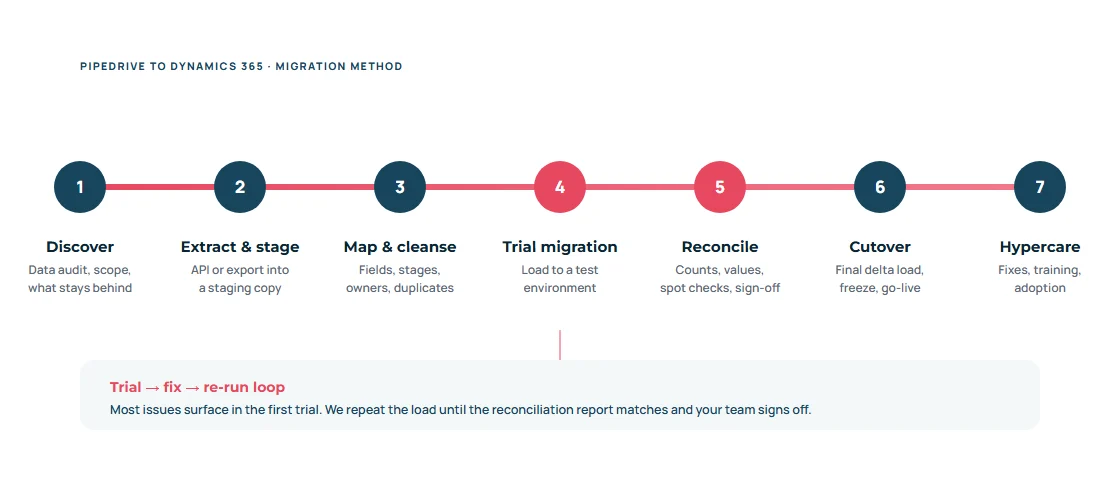
Seven-step Pipedrive to Dynamics 365 migration process from discovery to hypercare, with a trial, fix and re-run loop
Seven steps from discovery to hypercare, with a trial, fix and re-run loop.
1

Discover

Workshops on your pipelines, data volumes, integrations and what must be available on day one.

2

Extract & stage

Pipedrive data is copied into a staging database. Your team keeps working in Pipedrive.

3

Map & cleanse

Mapping document, stage and value tables, owner mapping and de-duplication rules.

4

Trial migration

Full load into a test environment. Users check real accounts and deals.

5

Reconcile

Record counts, deal values and spot checks per table, signed off by you.

6

Cutover & hypercare

Short freeze, final delta load, go-live, then hands-on support and training.

Testing

Migration testing and reconciliation

We never treat “the import finished” as success. Every trial run produces a reconciliation report that compares Pipedrive with Dynamics 365:

  • Record counts per object, open versus won versus lost
  • Total pipeline value and value per stage and owner
  • Random sample of accounts checked field by field with your users
  • Every failed row logged with the reason, fixed and re-run
  • Sign-off before the final cutover is scheduled
After go-live

Training and post-migration support

Your sales team gets role-based training on the new process: working leads and opportunities, activities in Outlook and Teams, quotes and forecasts. Administrators learn how to manage users, duplicate rules and simple changes.

  • Quick-reference guides for sales users
  • Hypercare period with fast fixes after go-live
  • Optional ongoing Dynamics 365 support and improvements

Planning a move off Pipedrive?

Tell us roughly how many deals, contacts and users you have. We will outline the approach, the questions to answer and a realistic plan.

Request a Migration Assessment
Why STW Services

A careful, documented path from Pipedrive to Dynamics 365

A Microsoft business applications team in Pune, India, delivering for clients worldwide since 2011.

Dynamics 365 & Dataverse delivery

Dynamics 365 Sales implementations, customisation, plug-ins and integrations

Migration discipline

Staging, mapping documents, trial runs and reconciliation, not one-shot imports

Joined-up Microsoft stack

Business Central, Power Automate, Power BI, SharePoint and Copilot Studio in one team

Honest scoping

We tell you what will move, what will be rebuilt and what should be archived

FAQ

Pipedrive migration questions

Direct answers to what sales leaders and IT ask before they move.

Ask us a question
How long does a Pipedrive to Dynamics 365 migration take?

Small, clean datasets with one pipeline can move in a few weeks including testing. Larger migrations with several pipelines, years of activity history, files and integrations take longer. We give you a timeline after a short discovery, once data volume and scope are known.

Can we migrate deal history, activities and notes?

Usually yes. Won and lost deals, completed activities and notes can be migrated and linked to the right accounts and opportunities. We agree how much history to bring; very old activity is sometimes better archived than migrated.

Will our Pipedrive custom fields come across?

Custom fields you still use become custom columns or choice columns in Dynamics 365. We review each one first, because many CRMs carry fields that are rarely filled in and do not need to move.

Do Pipedrive automations and integrations migrate?

No. Automations, web forms, email sync and third-party integrations are configuration, not data. We list them and rebuild the ones you need with Dynamics 365 features and Power Automate.

Can we keep using Pipedrive during the migration?

Yes. Your team keeps working in Pipedrive while we build and test. At cutover there is a short freeze and a final delta load of changes made since the last trial run.

Do we need Dynamics 365 Sales licences before migrating?

You need a Dynamics 365 environment and licences for the people who will use it. We can help you choose between Sales Professional and Sales Enterprise based on your requirements before the build starts.

Should we use Pipedrive’s export or the API?

Exports suit small, simple loads. For most companies we use the API into a staging database, because it captures custom fields, relationships and files and lets us repeat trial runs and the final delta load reliably.

Can Dynamics 365 Sales connect to Business Central after the migration?

Yes. Microsoft provides a standard integration between Dynamics 365 Sales and Business Central for customers, items and orders. See our Dynamics 365 Sales and Business Central integration service; we can plan it as part of the same project.

Choose your migration

Not moving from Pipedrive?

Next step

Discuss your Pipedrive migration

Share your Pipedrive plan, number of users, pipelines and roughly how many deals and contacts you have. We will reply with practical next steps.

  • A reply from a Dynamics 365 consultant
  • Practical next steps and the questions to answer first
  • No obligation

Discuss Your Migration Project

Tell us which CRM or version you run today, roughly how much data you have and what Dynamics 365 should do on day one. A Dynamics 365 consultant will reply with practical next steps.

  • Describe your current CRM or Dynamics CRM version in the form
  • Mention users, record volumes and key integrations
  • Or email support@stw-services.com
Discuss Your Migration Project