Introduction
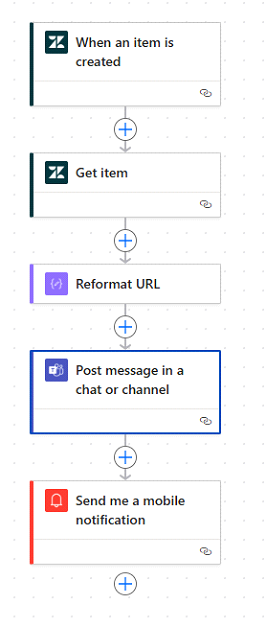
As developers, we always want to avoid repetitive manual tasks. In this blog, I’ll show how I used Power Automate to create a flow that listens to new Zendesk tickets, gets the full user info, reformats a custom link, and sends alert messages in Microsoft Teams and as mobile notifications. This kind of automation helps IT support teams respond faster and stay updated. As per this Image –
Let’s break it down step-by-step.
Flow Breakdown –
Here is the complete blog which we can going to break down in part and with details –
Step 1: Trigger – When an item is created
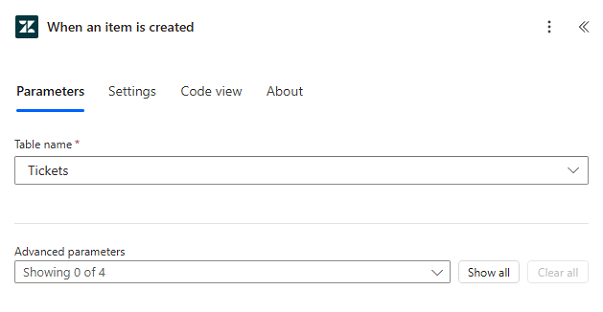
This is the starting point of our flow. We selected the Tickets table from Zendesk. Whenever a new ticket is created, the flow will trigger automatically.
🛠️ Table name used: Tickets
📌 Purpose: Detect new ticket instantly
Step 2: Get item – Pull requester details
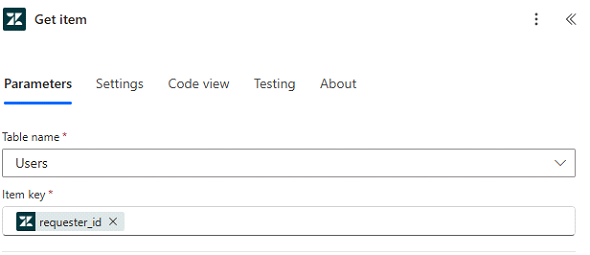
Next, we used the Zendesk Users table to fetch more info about the person who raised the ticket. We used requester_id as the lookup key.
🛠️ Table name: Users
🔍 Item key: requester_id
This step helps us include the customer’s name in our Teams message.
Step 3: Reformat URL – Custom logic
We added a small logic (probably using an expression or script action) to create a usable Zendesk ticket URL. This step is useful for giving direct clickable access in alerts.
concat(
split(triggerOutputs()?[‘body/url’], ‘:’)[0],
slice(triggerOutputs()?[‘body/url’], indexOf(triggerOutputs()?[‘body/url’], ‘:’), nthIndexOf(triggerOutputs()?[‘body/url’], ‘/’, 3)),
slice(triggerOutputs()?[‘body/url’], nthIndexOf(triggerOutputs()?[‘body/url’], ‘/’, 5), nthIndexOf(triggerOutputs()?[‘body/url’], ‘.’, 3))
)
🔗 Example output: https://yourcompany.zendesk.com/ticket/12345
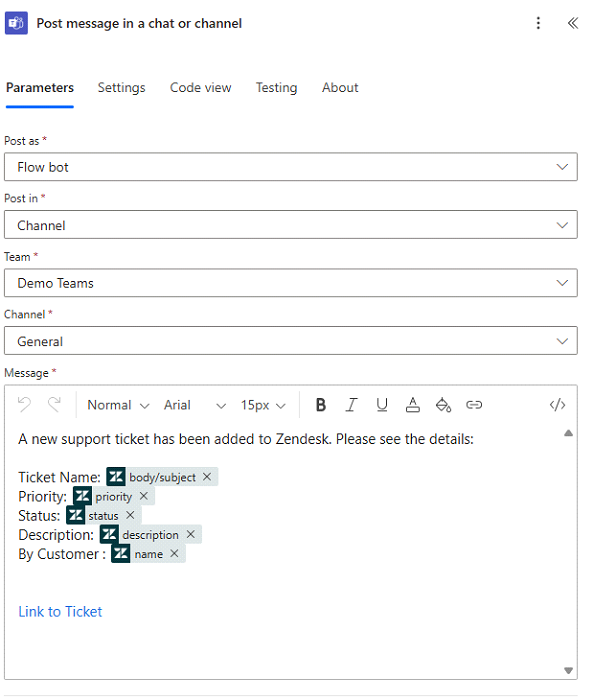
Step 4: Post message to Teams channel
This is the heart of the notification system. We send all ticket details in a Teams channel using a Flow bot. Here’s what goes in the message:
A new support ticket has been added to Zendesk. Please see the details:
Ticket Name:
Priority:
Status:
Description:
By Customer:
Link to Ticket
📢 Team: Demo Teams
💬 Channel: General
Makes it easy for your support team to stay in loop and click straight to the ticket.
Step 5: Send mobile notification
Lastly, we added a Power Automate mobile push notification step. This helps alert support leads even when they’re not checking Teams.
📱 Message example: “New Zendesk ticket raised by John Doe: Printer not working”
Summary
In this flow, we used Power Automate to build a full Zendesk-to-Teams notification pipeline:
- Trigger on new ticket
- Fetch requester info
- Reformat the ticket URL
- Send full details to Teams
- Send mobile alert for instant visibility
This setup is simple to build, low-maintenance, and helps teams react faster to support tickets. Ideal for small-to-mid size service desks!
Leave a Reply