
Introduction:
Ever wondered how you can automatically analyze the tone of your manager’s emails and get instant alerts?
With Power Automate and AI capabilities, you can create a smart email workflow that does exactly that. In this blog, we’ll walk you through building a flow that triggers new emails, checks if the sender is your manager, converts the email content to plain text, and uses AI sentiment analysis to determine whether the message is positive or negative. You’ll even receive a push notification with the results, all without writing a single line of code!
Overview of Flow:
This Power Automate flow intelligently monitors your inbox, checks if an incoming email is from your manager, and instantly analyzes its tone using AI sentiment analysis. By converting the email body to plain text, the flow ensures accurate sentiment detection (positive, neutral, or negative) and sends you a real-time push notification with the results. This automation helps you prioritize important emails, understand their tone at a glance, and respond quickly and appropriately. This is the flow we are going to create step by step.
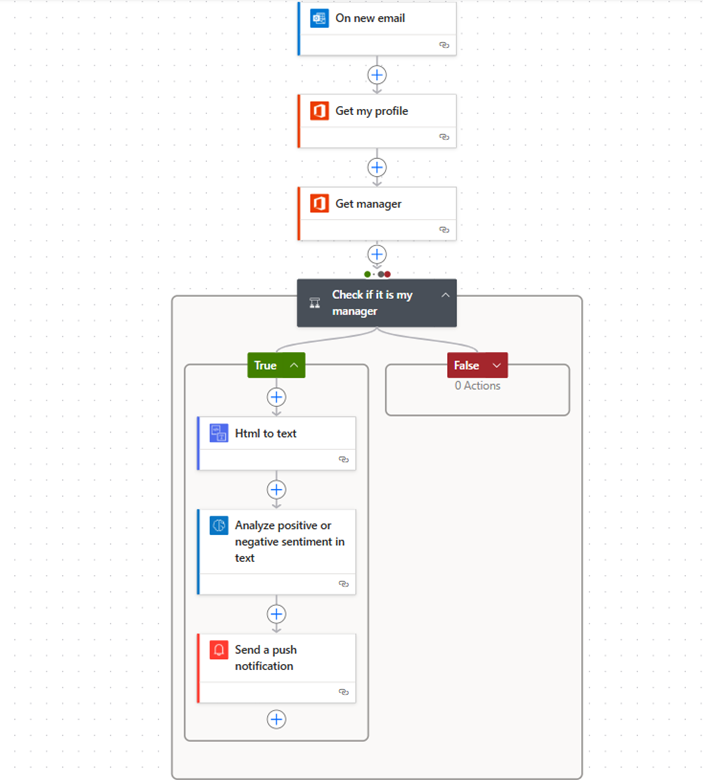
Step-by-Step Guide to Create This Flow :
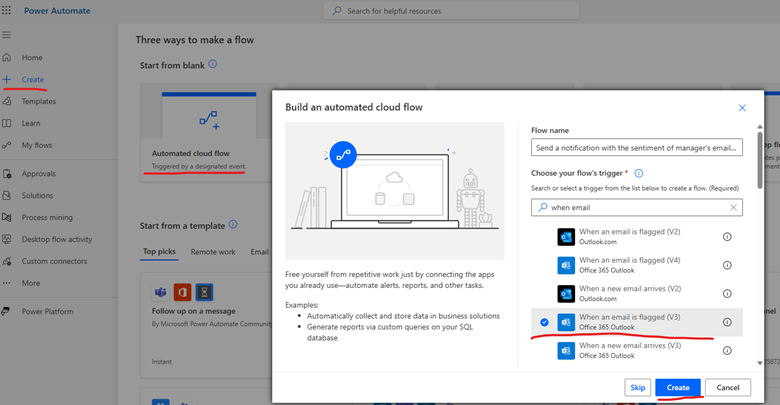
Step 1: Create a New Automated Flow
- Go to Power Automate.
- Click on Create > Automated cloud flow.
- Name your flow, for example, “Send a notification with the sentiment of manager’s email using AI Builder.
- Select the trigger “When a new email arrives (V3)” from Outlook.
- Click Create.
Step 2: Get Your Profile Information
- Add a new step.
- Search for Office 365 Users connector.
- Select “Get my profile (V2)”.
- This step retrieves your details, including your manager’s ID.
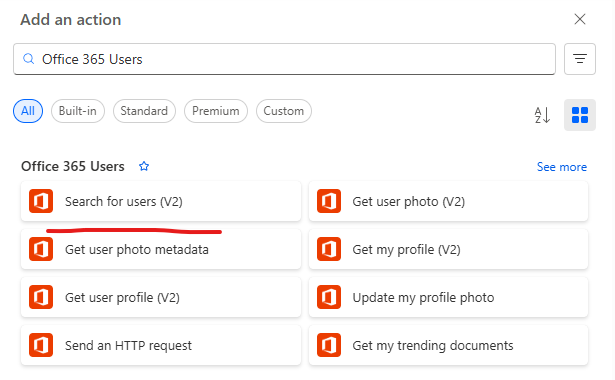
Step 3: Retrieve Your Manager’s Details
- Add another step with Office 365 Users.
- Select “Get manager (V2)”.
- This will fetch the manager’s email ID, which you will use for comparison.
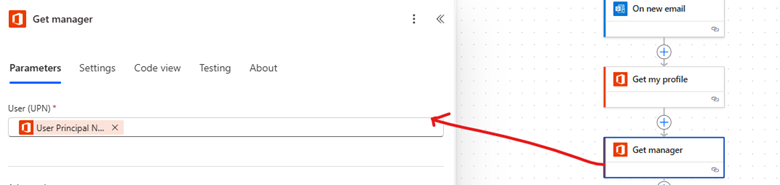
Code line for User (UPN) – ‘outputs(‘Get_my_profile’)?[‘body/userPrincipalName’]’
Step 4: Add a Condition to Check if the Email is from Your Manager
- Add a Condition control.
- Set it to compare the From (Email) of the incoming email with the Mail field of your manager (from the Get manager step).
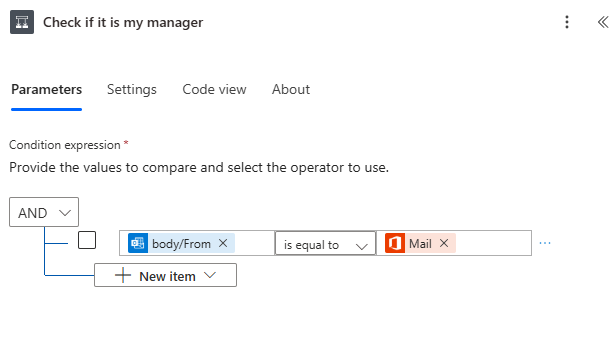
Code line – ‘@equals(triggerOutputs()?[‘headers’]?[‘From’], body(‘Get_manager_(V2)’)?[‘mail’])’
- If True, the flow continues; if False, it does nothing.
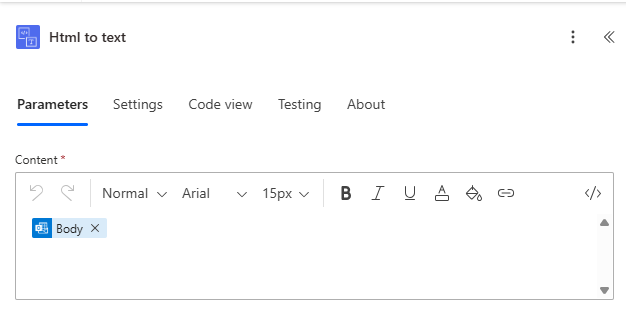
Step 5: Convert HTML Email to Plain Text
- In the True branch, add the action “Html to text” (Data Operations).
- Select the Body content from the email.
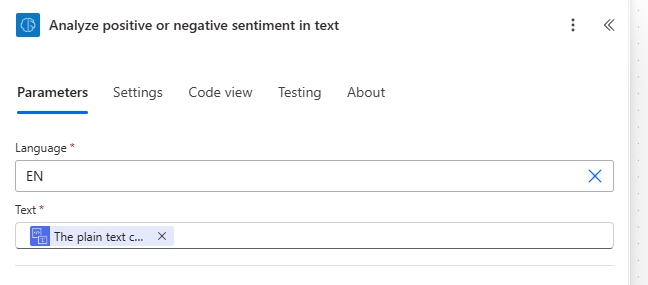
Step 6: Analyze Sentiment of the Email
- Add a new step with AI Builder.
- Choose “Analyze positive or negative sentiment in text”.
- Pass the output of Html to text to the input of this step.
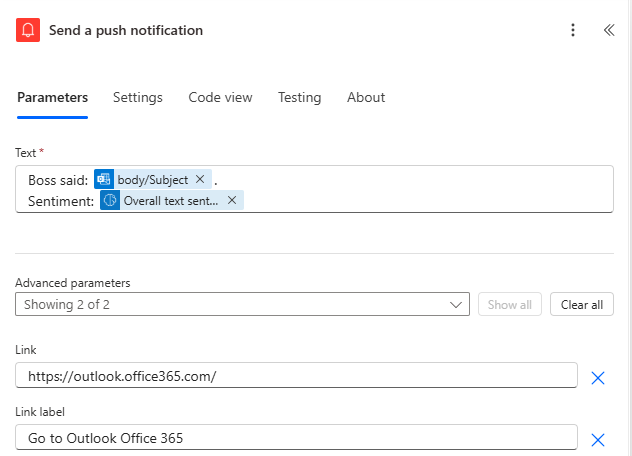
Step 7: Send a Push Notification
- Add Notifications connector.
- Select “Send me a mobile notification”.
- Include details like:
Subject: @{triggerOutputs()?[‘body/subject’]}
Sentiment: @{outputs(‘Analyze_positive_or_negative_sentiment_in_text’)?[‘prediction’]}
Step 8: Test and Save
- Save the flow.
- Send a test email from your manager’s account.
- Check your mobile notification with the sentiment results.
Conclusion
With just a few steps, you can create a powerful automation that not only monitors emails from your manager but also provides instant sentiment insights using AI. This flow saves time, ensures you never miss important emails, and helps you gauge the tone of communication before even opening the message. By leveraging Power Automate and AI Builder, you can bring intelligence and efficiency to your everyday workflow.