Manual approval processes are tedious, error-prone, and slow down procurement. Thankfully, Power Automate offers an elegant, fully automated solution that integrates seamlessly with Dynamics 365. In this blog, I’ll walk you through a complete approval automation flow for purchase documents using a real-world scenario.
Let’s break it down.
Flow Overview
Automation kicks off when a purchase document approval is requested in Dynamics 365. From there, we:
- Fetch details about the request.
- Collect necessary metadata (like the approval link and user info).
- Trigger an approval request.
- Track the outcome and send email notifications accordingly.
Here’s what the full flow looks like in Power Automate:
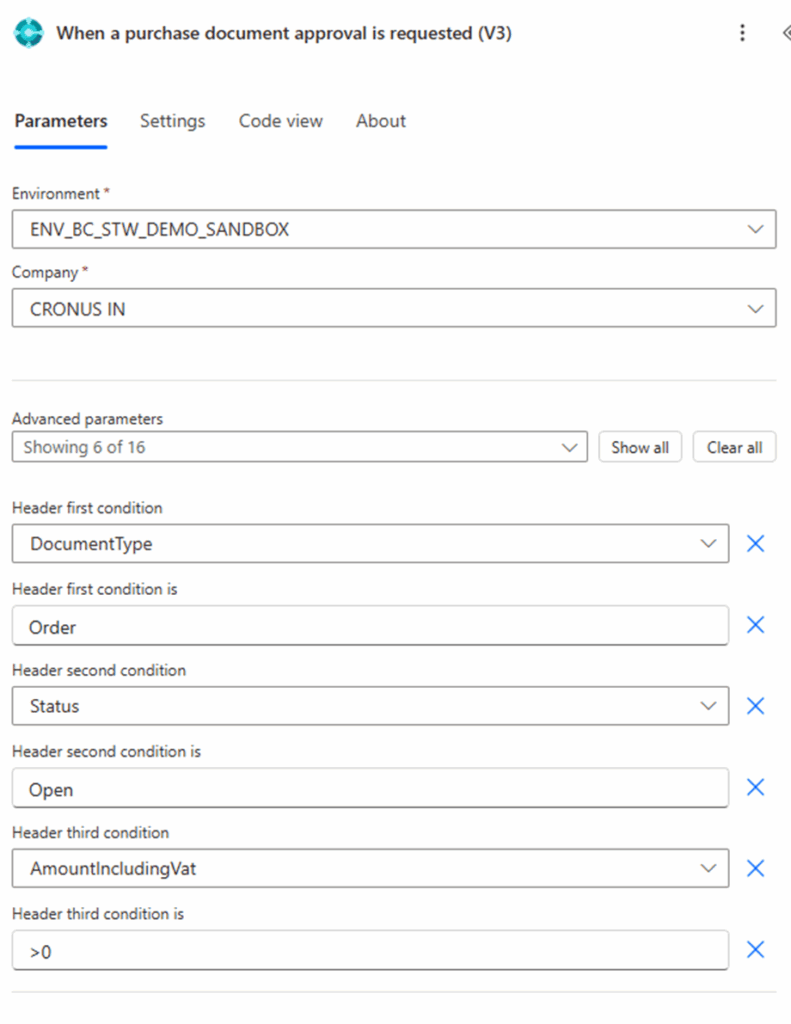
Step 1: Trigger – When a purchase document approval is requested (V3)
This is the starting point. The trigger activates whenever an approval is initiated in Dynamics 365 Business Central. It listens for approval requests of purchase documents (like purchase orders).
Step 2: Get Record from Business Central
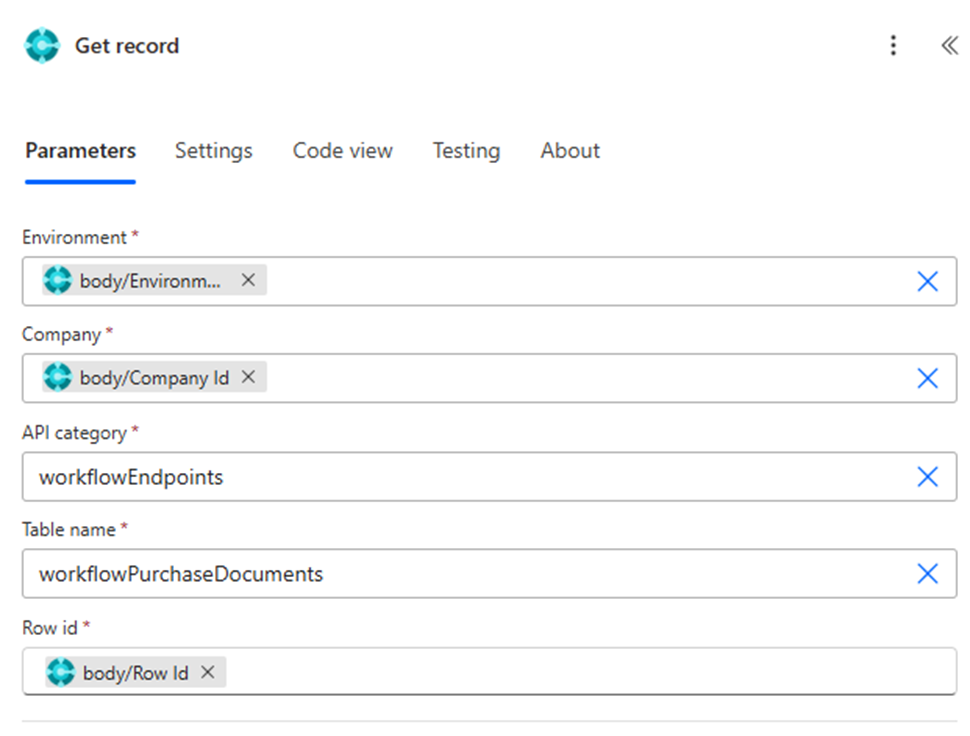
Immediately after triggering, we fetch the full record details using the Get record action. This ensures we have all necessary data (e.g., vendor name, amount, due date) to display in the approval summary and emails.
- Connector: Dynamics 365 Business Central
- Purpose: Retrieves a specific purchase document record using the Row ID passed from the trigger
- Environment:
- Dynamic input from the trigger using ‘triggerOutputs()?[‘body/Environment Name’]’
- Company:
- Dynamic input using ‘triggerOutputs()?[‘body/Company Id’]’
- API Category:
- Set to ‘workflowEndpoints’
- This points to custom or published API endpoint category in Business Central
- Table Name:
- Set to ‘workflowPurchaseDocuments’
- Represents the API table containing the purchase documents eligible for approval
- Row ID:
- Dynamic ID input using ‘triggerOutputs()?[‘body/Row Id’]’
- Identifies the exact document to retrieve from the specified table
Step 3: Generate Business Central URL
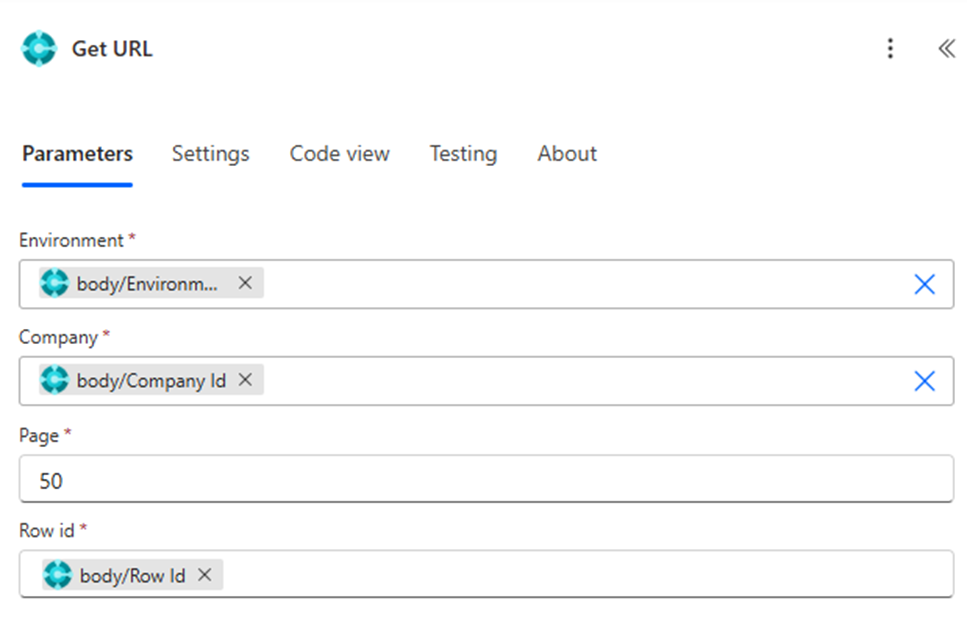
The Get URL action constructs a direct link to the record inside Business Central. This is essential for enabling approvers to quickly access and validate the request before acting.
- Connector:
Dynamics 365 Business Central - Purpose:
To generate a URL that opens the purchase order directly in Business Central - Environment:
Dynamic value taken from the trigger
Expression used: triggerOutputs()?[‘body’][‘Environment Name’]
Ensures the URL corresponds to the correct environment (sandbox or production) - Company:
Dynamic value from the trigger
Expression used: triggerOutputs()?[‘body’][‘Company Id’]
Ensures the link opens under the correct company, such as “CRONUS IN” - Page:
Static value set to 50
Page 50 generally refers to the Purchase Order List page in Business Central - Row ID:
Dynamic value from the trigger
Expression used: triggerOutputs()?[‘body’][‘Row Id’]
This uniquely identifies the purchase document for which the URL is being generated
Step 4: Fetch User Details (Microsoft 365)
Using the Get user details action from Microsoft 365, we retrieve the approver’s name, email address, and other attributes. This step supports dynamic routing and personalized notifications.
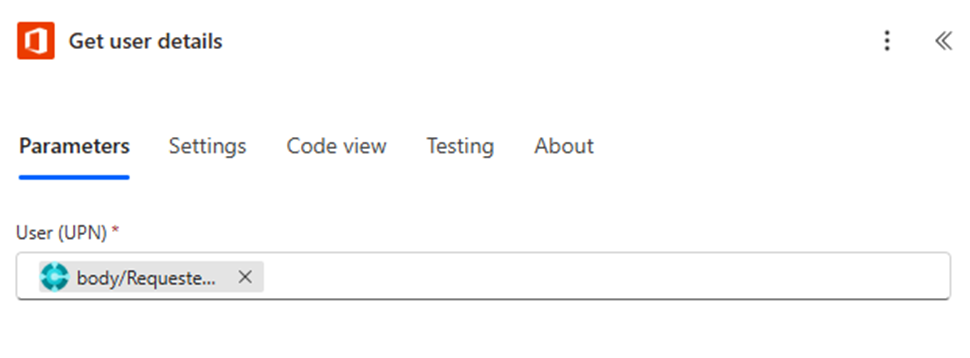
- Connector:
Office 365 Users - Purpose:
To retrieve details of the requester such as display name, job title, department, and more - User (UPN):
The value is dynamically provided using:
triggerOutputs()?[‘body’][‘Requested By User Email’] - Where the UPN comes from:
The email address of the requester is passed from the Business Central workflow trigger
Step 5: Start and Wait for an Approval
Now comes the key step — initiating the Start and wait for an approval action. This is a built-in approval connector in Power Automate. We configure:
- Approval type: Typically “Approve/Reject – First to respond”.
- Title & Details: Populated using record fields.
- Link to document: Embedded from the Business Central URL.
Once triggered, this pauses the flow until the approver responds.
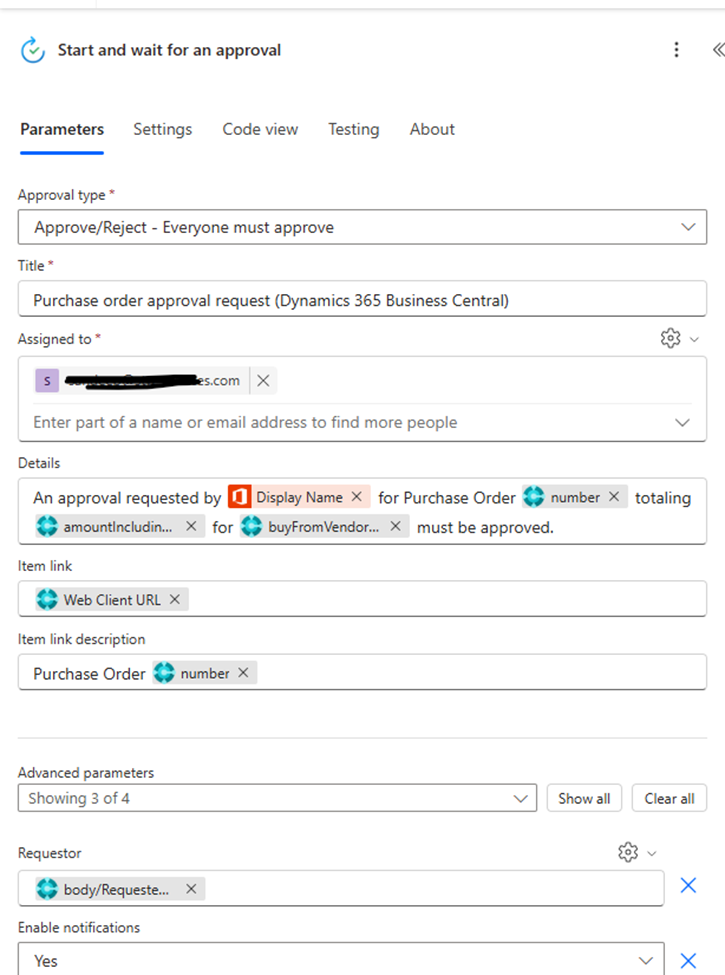
- Approval type:
Approve/Reject – Everyone must approve
This ensures that all listed approvers must approve before it moves forward. - Title:
Static text: Purchase order approval request (Dynamics 365 Business Central)
Appears in the approval notification email and the Approvals app in Teams/Outlook. - Assigned to:
Static email: sandeep@yourdomain.com
The approval request will be sent to this user (or list of users). - Details:
This section creates a dynamic message with data pulled from previous steps to provide full context.
Format used:
An approval requested by Display Name for Purchase Order {number} totaling {amountIncludingVat} for {buyFromVendorName} must be approved.
Breakdown of dynamic fields:
- Display Name → From the “Get user details” step
- number → body(‘Get_record’)?[‘number’]
- amountIncludingVat → body(‘Get_record’)?[‘amountIncludingVat’]
- buyFromVendorName → body(‘Get_record’)?[‘buyFromVendorName’]
- Item link:
Uses Web Client URL
This is generated in the “Get URL” step to provide a direct link to the PO in Business Central. - Item link description:
Uses the purchase order number dynamically:
Purchase Order {number} → body(‘Get_record’)?[‘number’] - Requestor:
Dynamic expression:
triggerOutputs()?[‘body’][‘Requested By User Email’]
Identifies who originally submitted the purchase request. - Enable notifications:
Set to Yes
Sends email notifications to assigned users for the approval request.
Step 6: Prepare Approval Summary
After the approval, we Initialize a response summary variable to collect response details. Then we loop through each response (if multiple) using an Apply to each action and format it — e.g., approver name, comment, and decision timestamp.
Finally, we finalize the summary by appending the formatted responses into a single string, making it suitable for email or audit logs.
Step 7: Conditional Logic – React Based on Outcome
Here’s where it gets smart.
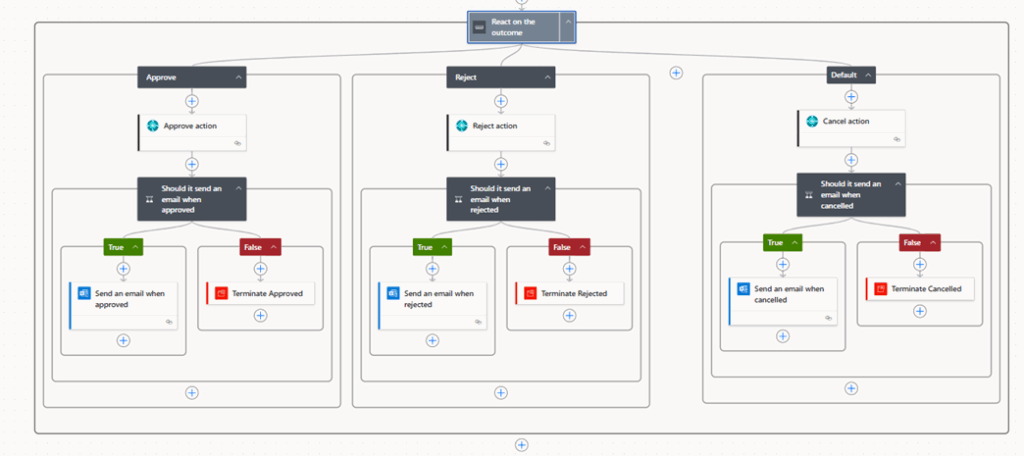
We use a Switch Control (or condition tree) to react based on the outcome:
- Approve Path:
- Executes an “Approve action” in Business Central.
- If Send Email flag is true, send an Approval Confirmation Email.
- If not, terminate with a success note.
- Reject Path:
- Executes the “Reject action”.
- Sends a Rejection Email if enabled.
- Cancel Path:
- Triggers the “Cancel action”.
- Optionally sends a Cancellation Notification.
Each branch uses conditional checks (e.g., “Should it send an email when approved?”) before executing further steps, providing flexibility and avoiding unnecessary noise.
Email Notifications
Each branch includes dynamic, well-formatted email templates that:
- Mention the approver’s decision and comments
- Link back to the purchase document
- Include the approval summary
- Are sent only if enabled by a flag
Key Benefits of This Flow
- No manual follow-ups – Everything runs on its own.
- Real-time visibility – Approvers get notified instantly.
- Audit-ready – Each approval decision is tracked and stored.
- Dynamic and scalable – Easily extend for multi-level or conditional approvals.
Conclusion
Automating document approvals in Dynamics 365 using Power Automate is not just about speed, it’s about transparency, accountability, and scale. The flow we walked through today not only streamlines decision-making but also ensures your finance and procurement teams are aligned in real time.
If you’re using Business Central and haven’t implemented this yet, you’re missing out on serious efficiency.
Have questions or need help customizing your flow? Drop them in the comments or contact us at STW Services LLP. We’re here to help your business automate the smart way.